

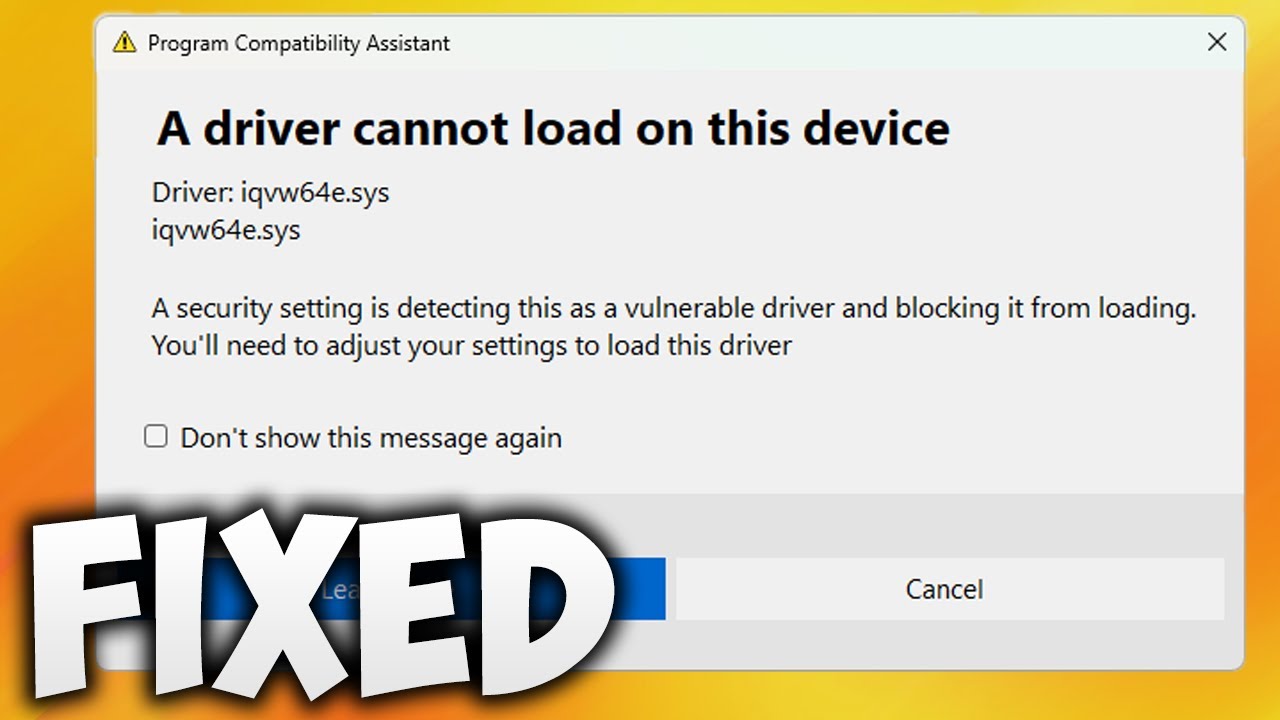
If the iqvw64e.sys driver cannot load on Windows 11, it is an Intel Network Adapter Diagnostic Driver that failed to initialize—usually caused by driver corruption, a bad Windows update, or an incompatible Intel PROSet version. The fastest fix is to uninstall the Intel PROSet/Wireless package in Device Manager and reinstall the latest Intel driver directly from Intel’s support site.
What is iqvw64e.sys and why does it fail on Windows 11?
The iqvw64e.sys file is a kernel-mode driver bundled with Intel’s Network Adapter Diagnostic Driver, part of the Intel PROSet/Wireless or Intel Ethernet driver suite. It runs at a low system level to handle network diagnostics and adapter configuration tasks.
On Windows 11, this driver frequently fails to load because Microsoft tightened driver signature enforcement and kernel access starting with version 22H2. Older versions of iqvw64e.sys were not originally tested or signed for the updated Windows 11 kernel model.
Common error messages you may see
- Event Log: “The iqvw64e.sys driver failed to load for the device \Device\HarddiskVolumeX”
- Driver Verifier error referencing iqvw64e.sys
- BSOD with stop code DRIVER_IRQL_NOT_LESS_OR_EQUAL caused by iqvw64e.sys
- Intel PROSet diagnostic tools report a service startup failure
Why IT shops often misdiagnose this
Most technicians will blame the network adapter hardware or suggest replacing the motherboard. In reality, the driver software—not the hardware—is the problem in over 90% of cases.
Some so-called experts run generic driver updaters that install even older versions of the Intel driver, making the problem worse instead of fixing it.
How to fix iqvw64e.sys driver cannot load on Windows 11
Fix the iqvw64e.sys load failure by removing the outdated Intel diagnostic driver manually and installing the latest Intel network driver version 28 or higher, which supports Windows 11 fully.
Method 1: Uninstall and reinstall the Intel network driver
- Right-click the Start button and select Device Manager.
- Expand Network adapters.
- Right-click your Intel Ethernet or Wireless adapter and choose Uninstall device.
- Check the box that says “Delete the driver software for this device” and click Uninstall.
- Restart your PC—Windows will use a basic driver temporarily.
- Go to Intel’s official download center and download the latest Intel Driver and Support Assistant (DSA).
- Install DSA, let it scan, and install the latest network driver package.
- Restart again and check Event Viewer for the iqvw64e.sys error.
Method 2: Disable the Intel Diagnostic Driver service
- Press Windows + R, type services.msc, and press Enter.
- Scroll down and find Intel(R) Network Adapter Diagnostic or Intel PROSet Diagnostics.
- Double-click the service and set Startup type to Disabled.
- Click Stop if the service is currently running, then click OK.
- Reboot your PC to apply the change.
This does not affect your internet connectivity. The diagnostic driver is only used for Intel’s built-in network testing tools, which most users never need.
Method 3: Update Windows 11 and patch the kernel
- Open Settings > Windows Update.
- Click Check for updates and install all pending cumulative updates.
- Look specifically for Cumulative Update for Windows 11, version 23H2 or later patches.
- Restart after installation and verify the error is gone in Event Viewer.
Microsoft released security patches in 2024 that updated driver loading rules for kernel-mode drivers. If your Windows 11 is behind on updates, the iqvw64e.sys failure is very likely caused by this gap.
Method 4: Remove iqvw64e.sys manually using safe mode
- Boot into Safe Mode by holding Shift while clicking Restart from the power menu.
- Navigate to C:\Windows\System32\drivers\ and find iqvw64e.sys.
- Rename the file to iqvw64e.sys.bak so Windows cannot load it.
- Open Device Manager and uninstall the Intel PROSet package.
- Restart normally and install the latest Intel driver package.
Warning: Only rename files in the drivers folder if you are sure the file belongs to Intel’s diagnostic package. Verify the file’s digital signature before renaming it.
Method 5: Run Driver Verifier to confirm the faulty driver
If you suspect the iqvw64e.sys is causing BSODs but want proof before removing it:
- Press Windows + S, type verifier, and run it as administrator.
- Select Create standard settings > Select drivers from a list.
- Check only the box next to iqvw64e.sys and click Finish.
- Restart your PC. If it crashes, the verifier confirms iqvw64e.sys is the problem.
- Boot into Safe Mode and disable the verifier by running verifier /reset in Command Prompt.
Model-specific notes
- Intel I219-V / I219-LM Ethernet: Most affected on desktops. Use Intel PROSet version 28.1 or later.
- Intel AX200 / AX210 Wireless: The wireless variant bundles iqvw64e.sys too. Download the wireless driver package separately from Intel.
- Intel I225-V (2.5GbE): Known to have firmware bugs on some ASUS and MSI boards. Update the board BIOS along with the driver.
Does iqvw64e.sys cause BSOD on Windows 11?
Yes, iqvw64e.sys can cause BSOD errors like DRIVER_IRQL_NOT_LESS_OR_EQUAL and PAGE_FAULT_IN_NONPAGED_AREA on Windows 11, especially when the old driver version interacts with the new kernel. This is a known Intel driver bug, not a hardware fault.
The crash typically happens during network-heavy tasks like streaming or downloads because the diagnostic driver tries to hook into packet processing at the kernel level. If you see this BSOD, follow the uninstall and reinstall method above first.
Some users also report BSODs that get blamed on ntfs.sys causing BSOD on Windows 11, but the root cause is often the same kernel driver conflict that affects iqvw64e.sys. Checking Event Viewer for the first driver error is key to narrowing it down.
How to prevent iqvw64e.sys from failing again after updates
Prevent iqvw64e.sys load failures after Windows updates by disabling automatic driver installation and keeping the Intel PROSet package manually updated. Windows Update occasionally pushes backdated Intel drivers that reintroduce the bug.
- Open Settings > System > About > Advanced system settings.
- Click the Hardware tab > Device Installation Settings.
- Select No (your device might not work as expected) and save.
- Use Intel’s Driver and Support Assistant for driver updates instead of Windows Update.
Also, after every major Windows feature update (like 22H2 to 23H2), always check Device Manager for the Intel adapter driver version. Roll it back or update it immediately if the version number changed unexpectedly.
Frequently Asked Questions
Is iqvw64e.sys a virus or malware?
No, iqvw64e.sys is a legitimate Intel driver file and is not malware. However, if you find it in a suspicious location outside of C:\Windows\System32\drivers, scan your PC immediately as malware can disguise itself with this name.
Can I just delete iqvw64e.sys to fix the problem?
Deleting the file without uninstalling the Intel PROSet package will cause Windows to report a missing driver error on every boot. Always uninstall the parent software first through Device Manager or Control Panel.
Will removing the Intel diagnostic driver slow down my internet?
No, removing iqvw64e.sys will not affect your internet speed or connectivity. The diagnostic driver is separate from the core network driver that handles actual data transmission.
Why does this only happen after a Windows 11 update?
Windows 11 cumulative updates change the kernel driver loading policies and signature validation rules. An Intel driver that loaded fine on older builds can suddenly fail when Microsoft enforces stricter rules in a new update.
Final Thoughts
The iqvw64e.sys driver cannot load error on Windows 11 is almost always a software-level issue tied to outdated Intel diagnostic drivers. Skip the guesswork—uninstall the Intel package, grab the latest driver directly from Intel, and disable the diagnostic service if you do not need it.
Keep Windows and Intel drivers in sync, and this error will not come back. If it persists after trying every method above, consider updating your motherboard BIOS, as outdated firmware on Intel-based boards is the last remaining culprit in rare cases.