

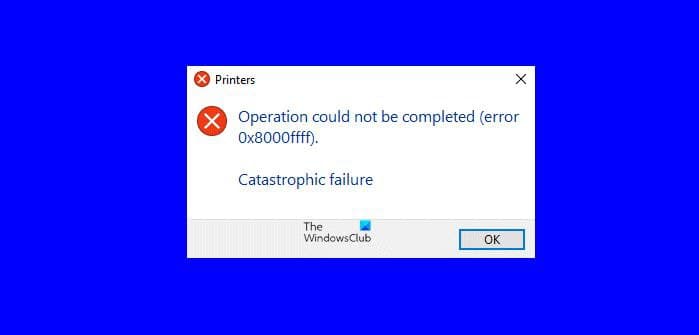
Error 0x8000ffff (Catastrophic Failure) on Windows 11 is caused by corrupted system files, a damaged component store, broken Windows Update services, or third-party software interference. Run SFC and DISM repairs first, then reset Windows Update components and clear the Microsoft Store cache to fix it.
What Causes Error 0x8000ffff Catastrophic Failure on Windows 11
Error 0x8000ffff is a generic COM (Component Object Model) failure that signals Windows cannot complete an internal operation due to a corrupted dependency, damaged component store, or service malfunction.
This error has existed since Windows XP and still surfaces on Windows 11 because the underlying COM architecture has not changed much. Microsoft labels it a “Catastrophic Failure” — which sounds dramatic but simply means an internal function returned an unexpected error code.
Most Common Triggers in the Real World
After diagnosing this error on dozens of machines, these are the patterns that show up repeatedly:
- ◆ Corrupted Windows Component Store (WinSxS): The most frequent cause, especially after interrupted updates or power loss during installation.
- ◆ Broken Windows Update Services: Corrupted SoftwareDistribution folder or disabled services.
- ◆ Third-Party Antivirus or Firewall: Products like Norton, McAfee, or Kaspersky have been documented blocking COM operations that trigger this error.
- ◆ Registry Corruption: Damaged COM registration entries or orphaned keys after uninstalling software.
- ◆ Microsoft Store Cache Damage: Outdated or corrupted Store app data.
- ◆ User Profile Corruption: Damaged user-specific COM configuration files.
Many so-called “experts” jump straight to reinstalling Windows, but that is almost never necessary. A clean, step-by-step diagnostic approach fixes this error in the vast majority of cases.
How to Fix Error 0x8000ffff with SFC and DISM Commands
Run DISM RestoreHealth first, then System File Checker (SFC). This is the single most effective fix because DISM repairs the component store that SFC relies on to replace corrupted files.
Running SFC alone is a common mistake — if the component store itself is damaged, SFC cannot pull clean replacement files from it. DISM goes one level deeper and rebuilds the store from Windows Update or a mounted ISO.
Step-by-Step DISM and SFC Repair
- Press the Windows key, type cmd, right-click Command Prompt, and select Run as administrator.
- Type the following command and press Enter: DISM /Online /Cleanup-Image /RestoreHealth
- Wait for it to complete. This can take 15 to 25 minutes. Do not close the window.
- Then type sfc /scannow and press Enter.
- Restart your PC once both commands finish.
If DISM fails with its own error, you may need to point it to a Windows 11 ISO as a repair source.
Mount an ISO, then run: DISM /Online /Cleanup-Image /RestoreHealth /Source:D:\sources\install.wim /LimitAccess (replace D: with your mounted drive letter).
For deeper diagnosis on what files were repaired or corrupted, you can check crash logs on Windows 11 to identify the exact failing component.
How to Reset Windows Update Components to Fix 0x8000ffff
Resetting Windows Update components clears the SoftwareDistribution and Catroot2 folders and restarts all update-related services. This fixes the error when it appears during Windows Update or Store app downloads.
Method 1: Stop and Delete Update Folders
- Open Command Prompt as administrator.
- Stop the update services by typing these commands one at a time:
net stop wuauserv
net stop cryptSvc
net stop bits
net stop msiserver - Rename the two folders:
ren C:\Windows\SoftwareDistribution SoftwareDistribution.old
ren C:\Windows\System32\catroot2 Catroot2.old - Restart the services:
net start wuauserv
net start cryptSvc
net start bits
net start msiserver - Restart your PC and try the update or install again.
Method 2: Run the Built-in Windows Update Troubleshooter
Open Settings > System > Troubleshoot > Other troubleshooters. Click Run next to Windows Update. Let it scan and apply fixes automatically.
If the troubleshooter reports no issues but the error persists, the problem is likely deeper — head to the SFC/DISM section above.
This same update failure is related to the 0x800f0838 Windows 11 update error that many users also encounter.
How to Clear Microsoft Store Cache for Error 0x8000ffff
Running the WSReset command clears the Microsoft Store cache instantly and resolves 0x8000ffff when it appears during Store app downloads or launches.
Quick Cache Reset
- Press Windows + R, type wsreset.exe, and press Enter.
- A blank Command Prompt window will appear. Wait for it to finish (about 10 seconds).
- The Microsoft Store will open automatically when done.
Full Store App Re-Registration
If WSReset does not help, re-register all Store apps through PowerShell:
- Open PowerShell as administrator.
- Paste this command and press Enter:
Get-AppxPackage -allusers | foreach {Add-AppxPackage -register “$($_.InstallLocation)\appxmanifest.xml” -DisableDevelopmentMode} - Restart your PC when the process completes.
How to Fix 0x8000ffff During Software Installation
Disable third-party antivirus temporarily and run the installer as administrator. Antivirus interference is the leading cause of this error during application installs.
1. Temporarily Disable Antivirus
Open your antivirus dashboard and turn off real-time protection or the firewall completely.
Run the installer again. If it works, add the installer to the antivirus exclusion list permanently.
2. Run Installer in Compatibility Mode
Right-click the installer file > Properties > Compatibility tab > check Run this program in compatibility mode > select Windows 10. Click Apply and run the installer as administrator.
3. Clean Boot to Eliminate Conflicts
- Press Windows + R, type msconfig, and press Enter.
- Go to the Services tab, check Hide all Microsoft services, then click Disable all.
- Go to the Startup tab and click Open Task Manager. Disable all startup items.
- Restart and run the installer again.
Registry Fixes for 0x8000ffff Catastrophic Failure
Corrupted COM registration entries in the registry can trigger this error. Restoring registry permissions and re-registering COM components fixes it.
Re-Register Key COM Components
Open Command Prompt as administrator and run these commands one at a time:
- ✓ regsvr32 combase.dll
- ✓ regsvr32 ole32.dll
- ✓ regsvr32 msxml3.dll
Restart your PC after running all three. These DLLs handle COM and OLE operations that are directly linked to the 0x8000ffff error code.
System Restore as a Registry Repair
If you suspect registry damage and have a restore point, type System Restore in the Start menu and follow the wizard to revert to a date before the error started appearing.
This undoes all recent registry changes without affecting your personal files.
When Nothing Works: Repair Install Windows 11
A repair install (in-place upgrade) of Windows 11 replaces all system files and registry entries while keeping your apps, files, and settings intact. This is the last resort before a full clean install.
How to Perform an In-Place Upgrade
- Download the Windows 11 Installation Assistant or a Windows 11 ISO from Microsoft’s official site.
- Mount the ISO and run setup.exe.
- Select Keep personal files and apps when prompted.
- Let the process complete. This takes 30 to 60 minutes depending on your hardware.
This approach has the highest success rate when all other methods fail because it rebuilds the entire operating system layer.
You can find proven fixes for error 0x8000ffff catastrophic failure on Windows 11 with additional troubleshooting strategies.
Frequently Asked Questions About Error 0x8000ffff
Is error 0x8000ffff a sign of hardware failure?
No. This error is entirely software-related and has no connection to failing hardware components like RAM or hard drives. It always traces back to corrupted system files, registry entries, or service malfunctions.
Can error 0x8000ffff damage my personal files?
No, the error itself does not delete or corrupt personal files. However, always back up important data before running DISM, SFC, or a repair install as a general precaution.
Does resetting the Microsoft Store delete my installed apps?
No. WSReset only clears cached download data and temporary files. Your installed Store apps and their data remain untouched.
Why does 0x8000ffff keep coming back after I fix it?
Recurring errors usually indicate an underlying issue like a failing Windows Update service, persistent antivirus conflict, or a deeper component store problem that SFC and DISM cannot fully resolve. Run a repair install in that case.
Can I ignore error 0x8000ffff and continue using Windows normally?
It depends on where the error appears. If it blocks updates or software installs, you should fix it. If it appears in a one-time app launch and does not repeat, it may be a transient glitch.
Bottom Line: Fix It Fast Without Reinstalling Windows
Error 0x8000ffff catastrophic failure on Windows 11 is solvable without a clean install in nearly every case. Start with DISM and SFC repairs, then reset Windows Update components and clear the Store cache. Only resort to a repair install if every other method has been exhausted.
Most users who follow the steps in this guide fix the error within an hour. The key is to work methodically from the simplest fix upward rather than trying random solutions out of order.