

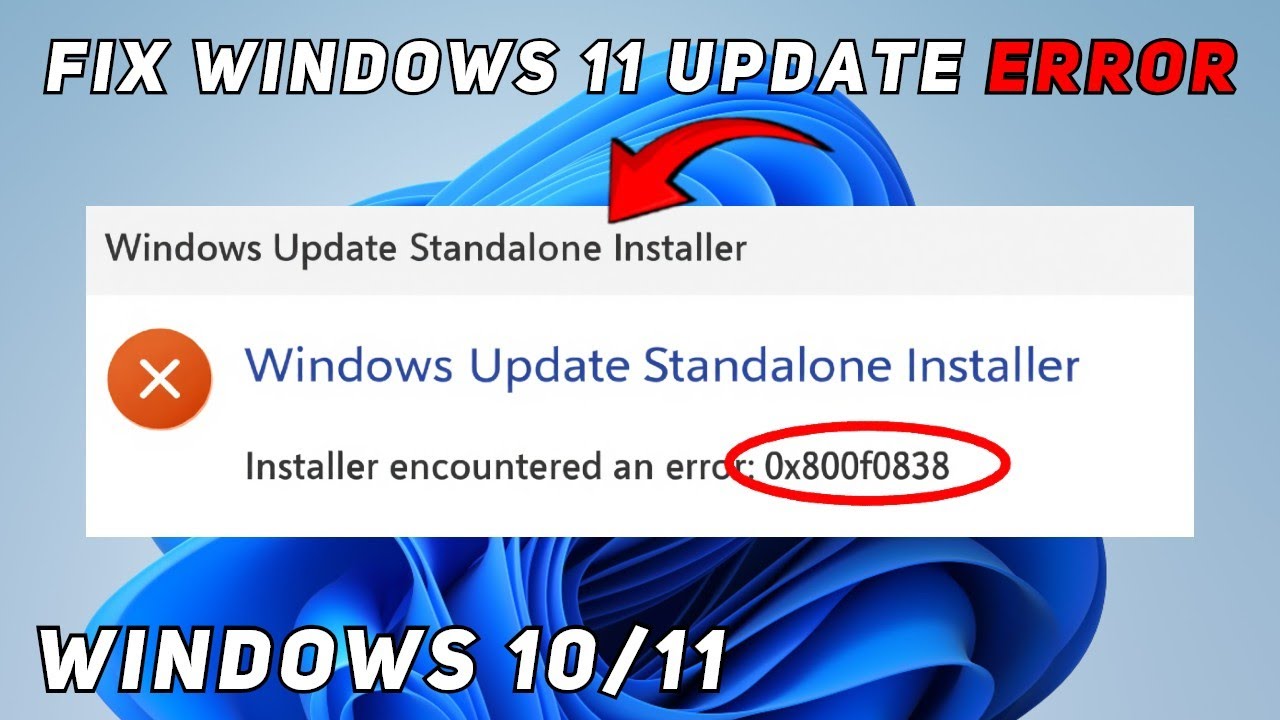
Installer Encountered an Error 0x800f0838 Windows 11 Fixes
The installer encountered an error 0x800f0838 on Windows 11 because the Component-Based Servicing (CBS) store is missing source files needed to complete the installation. This error (CBS_E_SOURCE_MISSING) typically appears during Windows Update, optional feature installs, or DISM commands. Clearing the update cache, running SFC and DISM repair, and installing the missing source files manually are the most reliable fixes.
What Is Error 0x800f0838 and Why Does It Happen?
Error 0x800f0838 is a CBS_E_SOURCE_MISSING error that means Windows cannot find the installation source files required for a specific operation.
This usually happens when installing cumulative updates, adding Windows optional features like .NET Framework 3.5, or running DISM Add-Capability commands.
The Technical Reason Behind the Error
Windows 11 uses a component store (WinSxS folder) to keep a catalog of all system files. When an update or feature requires a file that was cleaned up, trimmed, or never downloaded, Windows throws 0x800f0838.
Unlike generic update errors, this one is specific—it points to missing source media, not a network or permission problem.
Common Triggers You Should Know
- Running Disk Cleanup or third-party cleaners that remove system files
- Using DISM /Online /Cleanup-Image /StartComponentCleanup aggressively
- Installing optional features without a valid installation source path
- Applying cumulative updates after upgrading from an older Windows build
- Mounting or using a custom ISO with missing packages
How to Fix Installer Encountered an Error 0x800f0838 Windows 11
Run SFC and DISM repair commands first, then clear the Windows Update cache and manually install the missing source files to resolve 0x800f0838.
Below are the proven methods ordered from simplest to most advanced.
Method 1: Run SFC and DISM RestoreHealth
The System File Checker and DISM RepairImage tools can rebuild missing component store entries from cached sources.
- Press the Windows key and type cmd.
- Right-click Command Prompt and select Run as administrator.
- Type DISM /Online /Cleanup-Image /RestoreHealth and press Enter.
- Wait for the scan to finish. It can take 10 to 20 minutes.
- Type sfc /scannow and press Enter.
- Restart your PC after both scans complete.
Method 2: Clear the Windows Update Cache
A corrupted SoftwareDistribution folder can cause the installer to hit 0x800f0838 because it references stale manifest files.
- Open Command Prompt as administrator.
- Type net stop wuauserv and press Enter.
- Type net stop bits and press Enter.
- Navigate to C:\Windows\SoftwareDistribution\Download and delete all files inside.
- Restart the Windows Update services: net start wuauserv then net start bits.
- Retry the installation.
Method 3: Specify a DISM Source Path Manually
If DISM RestoreHealth fails, it means Windows cannot pull files from Windows Update. You need to point DISM to a valid installation source.
- Download the Windows 11 ISO from Microsoft using the Media Creation Tool.
- Right-click the ISO and select Mount.
- Note the drive letter (for example, D:\).
- Open Command Prompt as administrator.
- Run: DISM /Online /Cleanup-Image /RestoreHealth /Source:D:\sources\install.wim /LimitAccess
- Wait for the operation to finish, then run sfc /scannow.
Method 4: Install the Update Manually from Microsoft Update Catalog
Bypass the automatic installer entirely by downloading the specific update package and running the standalone installer.
- Go to the Microsoft Update Catalog website.
- Search for the KB number shown in the failed update.
- Download the .msu file matching your system architecture (x64 or ARM64).
- Double-click the downloaded file to install it manually.
Method 5: Reset Windows Update Components
A full reset of the update subsystem removes corruption in both the update service and the Catroot2 cryptographic store.
- Open Command Prompt as administrator.
- Run these commands one by one:
- net stop wuauserv
- net stop cryptSvc
- net stop bits
- net stop msiserver
- ren C:\Windows\SoftwareDistribution SoftwareDistribution.old
- ren C:\Windows\System32\catroot2 Catroot2.old
- net start wuauserv
- net start cryptSvc
- net start bits
- net start msiserver
Restart your PC and try the update again.
Method 6: Disable Antivirus and Firewall Temporarily
Third-party antivirus tools can block the CBS servicing stack from writing to the component store.
- Open your antivirus settings and disable real-time protection.
- Turn off Windows Firewall from the Control Panel.
- Retry the installation.
- Re-enable all protections after the update completes.
Method 7: Perform an In-Place Upgrade Repair
If every method above fails, an in-place upgrade rebuilds the entire component store while keeping your files and apps intact.
- Download the Windows 11 ISO matching your current build.
- Mount the ISO and run setup.exe.
- Select Keep personal files and apps.
- Let the installer complete. This rebuilds CBS from scratch.
How to Check the Exact Cause of Error 0x800f0838 Using Logs
Reading CBS.log and DISM.log pinpoints which specific file or package is missing from the component store.
This prevents you from guessing and lets you target the fix directly.
Where to Find the Relevant Logs
- CBS.log — Located at C:\Windows\Logs\CBS\CBS.log. Search for “0x800f0838” to find the exact failing component.
- DISM.log — Located at C:\Windows\Logs\DISM\Dism.log. Shows which source path DISM tried and failed to use.
- Windows Update logs — Run Get-WindowsUpdateLog in PowerShell to generate a readable log file on the desktop.
If the logs show a missing .cab or .msu package, that confirms you need to provide a valid installation source.
Why IT Shops Often Misdiagnose This Error
Many technicians treat 0x800f0838 like a generic update failure and simply run the Windows Update Troubleshooter, which almost never fixes CBS_E_SOURCE_MISSING.
The real issue is missing source files, and no automated troubleshooter can download those from nowhere.
Common Wrong Fixes to Avoid
- Running only the Windows Update Troubleshooter—it does not touch the component store source.
- Reinstalling Windows immediately—the error is usually fixable without wiping.
- Deleting the entire WinSxS folder—this will break the OS completely.
- Using random registry cleaners that claim to fix update errors—they add more corruption.
If you are stuck and need a deeper diagnostic approach, learning how to check crash logs on Windows 11 can help you identify related system instability.
Error 0x800f0838 vs Other Windows Update Errors
Understanding how 0x800f0838 differs from similar errors prevents you from applying the wrong fix.
| Error Code | Meaning | Primary Fix |
|---|---|---|
| 0x800f0838 | CBS source files missing | Provide valid DISM source path |
| 0x800f081f | Source files not found | Mount ISO and point DISM to install.wim |
| 0x8000ffff | Catastrophic failure | Reset update components |
| 0x8007000d | Corrupt or invalid data | Clear SoftwareDistribution and retry |
If you are seeing error 0x8000ffff catastrophic failure on Windows 11 instead, the fix path is different and you should reset the update subsystem.
Preventing Error 0x800f0838 from Coming Back
Avoid aggressive component cleanup tools and always keep a Windows installation ISO ready so you can provide a valid source path.
Microsoft has not patched this behavior because it is by design—Windows simply cannot invent files that were never present or were deliberately removed.
Best Practices Going Forward
- Keep a current Windows 11 ISO on a USB drive or mounted virtually at all times.
- Never use third-party system cleaners on the WinSxS or CBS folders.
- Run DISM /RestoreHealth with a valid source path before each major cumulative update.
- Monitor CBS.log after large updates to catch missing components early.
For a complete walkthrough on the installer encountered an error 0x800f0838 on Windows 11, following the method order in this article will cover every known cause.
Frequently Asked Questions
Can error 0x800f0838 corrupt my Windows installation?
No, 0x800f0838 does not corrupt Windows. It simply means the installer cannot find source files. Your existing files and system remain intact.
Does this error happen on Windows 10 too?
Yes, 0x800f0838 can appear on Windows 10 as well. The same CBS_E_SOURCE_MISSING cause applies, and the same DISM source path fix works on both operating systems.
Will resetting Windows fix error 0x800f0838 permanently?
A full reset or clean install will fix it because it rebuilds the component store entirely. However, it is an extreme measure—try the DISM source path method first.
Why does DISM RestoreHealth fail with 0x800f0838?
DISM RestoreHealth fails with this error when it cannot reach Windows Update servers or when no local installation source is available. Running it with the /Source parameter and a mounted ISO resolves this.
Is there a Microsoft hotfix specifically for 0x800f0838?
No dedicated hotfix exists because this is a source availability issue, not a software bug. Microsoft expects you to provide valid installation media when the local store is incomplete.
Final Verdict
Error 0x800f0838 on Windows 11 is a source-file availability problem, not a critical system failure. Start with SFC and DISM repair, move to cache clearing, and if needed, manually provide a valid installation source using a mounted ISO. In almost every real-world case, one of these methods resolves the error permanently without reinstalling Windows.