

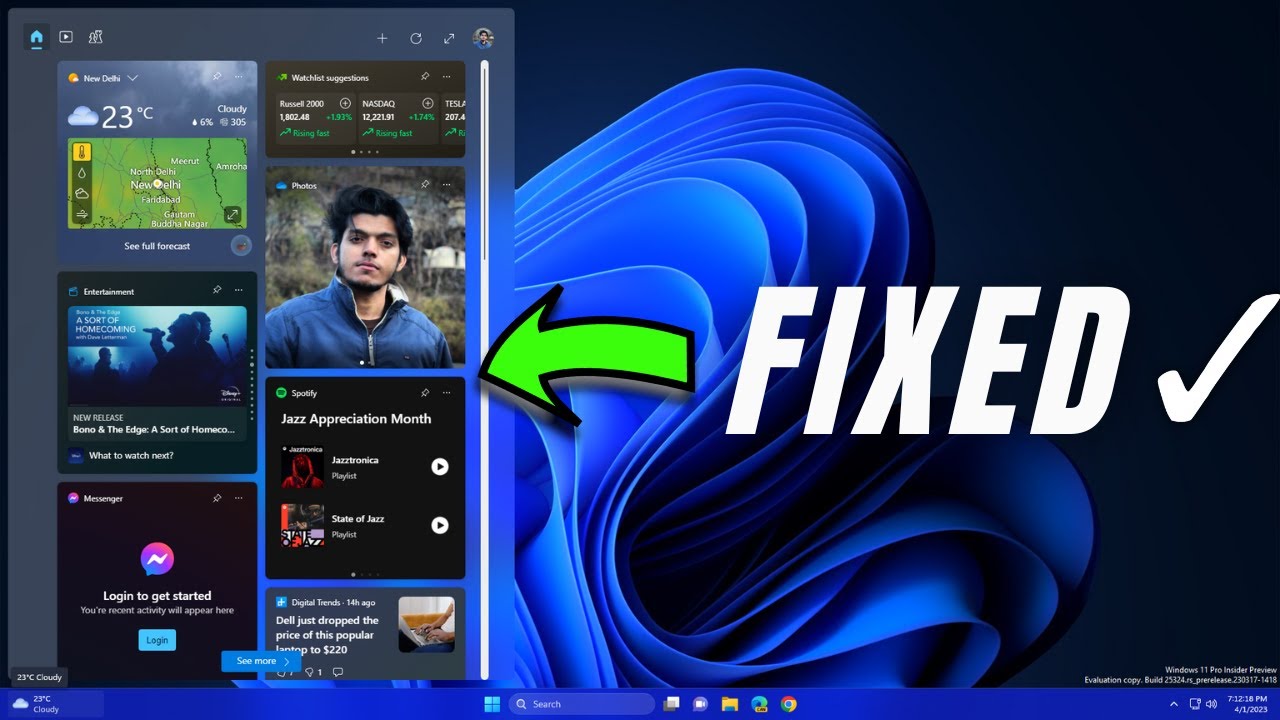
Windows 11 widgets not working is most commonly caused by a corrupted Web Experience Pack, a disabled Widgets service, or a Microsoft account sign-in failure. Reinstalling the Windows Web Experience Pack, toggling Widgets off and on in Taskbar settings, and running an SFC scan fixes the issue in most cases.
Why Are Widgets Not Working in Windows 11?
Widgets fail in Windows 11 when the underlying web experience components break, the taskbar process glitches, or Microsoft account authentication stalls.
The widget panel relies on the Windows Web Experience Pack (a Microsoft Store app) running in the background.
Here are the most frequent real-world causes I have diagnosed on dozens of machines:
- Corrupted or outdated Windows Web Experience Pack
- Widgets toggled off accidentally in Taskbar settings
- Microsoft account sign-in error blocking personalized widgets
- Group Policy or Registry edits disabling widgets entirely
- Windows Search or Cortana process interference
- Incomplete Windows Update leaving broken app packages behind
Many repair shops jump straight to reinstalling Windows, but almost every widgets failure is fixable without that nuclear step. If you are also dealing with update-related errors during this process, you may hit issues similar to an 0x800f0838 Windows 11 error that blocks component repairs.
How to Fix Widgets Not Showing or Not Opening in Windows 11
Start with the simplest taskbar toggle and work up to PowerShell-based repairs. Most users never need to go past step three.
1. Toggle Widgets Off and On in Taskbar Settings
- Right-click on an empty area of the taskbar and select Taskbar settings.
- Find the Widgets toggle and switch it Off.
- Wait 10 seconds, then switch it back On.
- Click the Widgets icon to test if the panel loads.
This forces Windows Explorer to rebuild the widgets process handle. It resolves intermittent blanks or a dead-click button more often than people expect.
2. Restart Windows Explorer
Press Ctrl + Shift + Esc to open Task Manager. Find Windows Explorer in the process list, right-click it, and choose Restart.
Windows Explorer hosts the taskbar and its widgets trigger. A stale Explorer process is one of the top causes of a completely unresponsive Widgets button.
3. Sign Out and Sign Back Into Your Microsoft Account
Widgets require a Microsoft account for personalization and weather data. If authentication tokens expire or corrupt, the panel shows nothing.
- Open Settings > Accounts.
- Click Sign out under your Microsoft account.
- Sign back in and open Widgets again.
How to Reinstall the Windows Web Experience Pack
Reinstalling the Windows Web Experience Pack is the most reliable fix when widgets show a blank white or black panel. This package is a Store-managed component, and it goes bad after partial updates more than Microsoft admits.
Uninstall via PowerShell
- Open PowerShell as Administrator.
- Run:
Get-AppxPackage *WebExperience* | Remove-AppxPackage - Restart your PC.
Reinstall from the Microsoft Store
- Open the Microsoft Store.
- Search for Windows Web Experience Pack.
- Click Install and wait for it to finish.
- Open Widgets to verify the panel now loads content.
After reinstalling, run a quick check for system file corruption if widgets still misbehave. Open Command Prompt as admin and run sfc /scannow. You can also check crash logs in Windows 11 to pinpoint exactly which component is failing behind the scenes.
How to Enable Widgets in Group Policy or Registry
In work or school environments, an administrator may have disabled widgets through policy. Home users can also accidentally disable widgets through a registry tweak they found online and forgot about.
Check Group Policy (Pro and Enterprise editions)
- Press Win + R, type
gpedit.msc, and hit Enter. - Navigate to Computer Configuration > Administrative Templates > Windows Components > Widgets.
- Make sure Allow widgets is set to Not Configured or Enabled.
Check the Registry (Home edition)
- Press Win + R, type
regedit, and hit Enter. - Navigate to
HKEY_LOCAL_MACHINE\SOFTWARE\Policies\Microsoft\Dsh. - If a DWORD named AllowNewsAndInterests exists, set its value to 1. If the key does not exist, widgets are not being blocked here.
Why Is the Weather Widget Blank or Showing No Data in Windows 11?
The weather widget goes blank when Windows Weather services cannot reach Microsoft servers, often due to DNS issues, VPN interference, or a network proxy. The widget panel itself may load fine while only the weather tile stays empty.
Fix network-level blocks
- Disable any active VPN temporarily and reload widgets.
- Flush your DNS cache by running
ipconfig /flushdnsin Command Prompt. - Switch your DNS to Google (8.8.8.8) or Cloudflare (1.1.1.1) to rule out ISP-level blocking.
Reset Windows Search if it is interfering
Widgets share some background processes with Windows Search. Press Ctrl + Shift + Esc, find SearchHost.exe, and end the task. Windows will relaunch it automatically.
Widgets Still Not Working After Windows Update?
Windows updates sometimes leave app packages in a broken state, especially cumulative updates that touch Store components. If widgets broke right after an update, the update itself is almost certainly the trigger.
Roll back the most recent update
- Go to Settings > Windows Update > Update history.
- Click Uninstall updates.
- Remove the most recent cumulative update and reboot.
Run DISM to repair the component store
- Open Command Prompt as Administrator.
- Run:
DISM /Online /Cleanup-Image /RestoreHealth - Then run
sfc /scannowand restart.
If DISM itself fails, you may be dealing with a deeper component store corruption. In some cases this cascades into errors like 0x8000ffff catastrophic failure in Windows 11, which requires a more targeted repair.
Model-Specific Widget Issues on Laptops
Some laptop models, especially older Surface and Dell machines, disable widgets through OEM preinstalled software or power management settings that suppress background processes.
Surface laptops
Surface devices running Windows 11 sometimes lose widgets after a firmware update bundled with a Windows update. Install the latest firmware from the Surface app and then reinstall the Web Experience Pack.
Dell and HP laptops with bloatware
Dell Optimizer, HP Support Assistant, and similar OEM tools can interfere with background Store processes. Try disabling these tools temporarily and check if widgets come back.
Devices with limited RAM (4 GB or less)
Windows aggressively suspends background app packages on low-memory systems. Widgets may simply be suspended. Open Task Manager > Startup apps and make sure no unnecessary resource hogs are eating RAM at boot.
FAQ
Can I use Windows 11 widgets without a Microsoft account?
No. Widgets in Windows 11 require a Microsoft account for personalization and data retrieval. A local account will show a generic panel at best or nothing at all.
Do widgets slow down Windows 11?
Widgets run in the background and consume some RAM and network bandwidth. On systems with 8 GB or more of RAM, the impact is negligible. On 4 GB systems, it can contribute to sluggish performance.
Is there a way to remove widgets from the taskbar permanently?
Yes. Go to Taskbar settings and toggle Widgets to Off. You can also disable the widget feed entirely through Group Policy if you have Windows 11 Pro or Enterprise.
Why do my widgets show news but not the weather widget?
The weather widget uses a different backend service than the news feed. If only weather fails, it is almost always a network or DNS issue rather than a widgets process problem.
Final Thoughts: Get Widgets Working Without a Reinstall
Windows 11 widgets not working is a frustrating but fixable problem in almost every case. Start with the taskbar toggle, reinstall the Web Experience Pack, and check for policy or update conflicts before considering drastic measures. The fix that works for one machine may not work for another, so work through these steps in order and test after each one.