

Windows 11 File Explorer Crashing – Proven Fixes That Work
Windows 11 File Explorer crashing is most often caused by corrupted system files, outdated graphics drivers, faulty Shell Extensions, or buggy Windows updates. You can fix it by running sfc /scannow in Command Prompt, updating your GPU drivers, disabling third-party Shell Extensions, or resetting File Explorer through Task Manager and the registry.
File Explorer is the backbone of Windows. When it keeps crashing, freezing, or restarting itself, your entire workflow falls apart.
This guide covers every real cause I have diagnosed on actual machines and gives you step-by-step fixes that work.
Why does File Explorer keep crashing in Windows 11?
File Explorer crashes in Windows 11 due to corrupted system files, conflicting Shell Extensions, outdated graphics drivers, or known bugs in recent Windows updates. The crash can also be triggered by large thumbnail caches, third-party context menu entries, or memory-hungry folder views.
In most repair cases I have seen, the problem is not a single cause. It is usually a combination of a stale driver and a corrupted cache that finally pushes Explorer past its limit. Below are the most common culprits and how to identify each one.
1.Corrupted or missing system files
Windows stores thousands of files that Explorer depends on. If even one DLL is damaged, Explorer can crash when it tries to render a folder or open a dialog.
To fix this, open Command Prompt as Administrator and run:
- Type
sfc /scannowand press Enter. - Wait for the scan to complete. It takes about 10 to 15 minutes.
- If issues are found but not repaired, run
DISM /Online /Cleanup-Image /RestoreHealthnext. - Restart your PC after both commands finish.
You can also check crash logs in Windows 11 through Event Viewer to find the exact faulting module. This tells you whether the crash points to a DLL, a driver, or an app.
2.Outdated or buggy graphics drivers
Explorer uses GPU acceleration to render thumbnails, transitions, and UI elements. A broken GPU driver is one of the most frequent causes of Explorer crashes on both Intel and NVIDIA machines.
- Open Device Manager, expand Display Adapters, and right-click your GPU.
- Select Update Driver, then choose Search automatically for drivers.
- If Windows says drivers are already up to date, go to your GPU manufacturer’s website and download the latest version directly.
- After installing, restart your PC and test Explorer.
3.Third-party Shell Extensions and context menu conflicts
Apps like WinRAR, 7-Zip, OneDrive, Dropbox, and cloud sync tools add entries to your right-click context menu. Some of these Shell Extensions are poorly written and cause Explorer to crash on right-click or file open.
Use a tool like ShellExView to disable non-Microsoft Shell Extensions one by one. Restart Explorer after disabling each one until the crash stops.
4.Buggy Windows Updates
Microsoft has shipped multiple updates that broke File Explorer. Updates like KB5034123 and KB5036980 caused Explorer freezes and crashes for thousands of users. If the problem started right after a recent update, that update is likely the cause.
Go to Settings, then Windows Update, then Update History, and Uninstall Updates. Remove the most recent update and check if Explorer stabilizes. You can find the fix for update-related errors like 0x800f0838 in Windows 11 if the update itself is failing to install.
How do I fix File Explorer crashing on startup in Windows 11?
If File Explorer crashes the moment your desktop loads, the startup state or a launch-time extension is the problem. The fastest fix is to clear the thumbnail cache and reset Explorer settings from the registry.
Clear the thumbnail and icon cache
- Press Ctrl + Shift + Esc to open Task Manager.
- Find Windows Explorer in the process list, right-click it, and select Restart.
- Open File Explorer and navigate to
C:\Users\YourUsername\AppData\Local\Microsoft\Windows\Explorer. - Delete all files inside this folder that start with
thumbcacheoriconcache. - Restart your PC.
Reset File Explorer via the registry
- Press Win + R, type
regedit, and press Enter. - Navigate to
HKEY_CURRENT_USER\Software\Microsoft\Windows\CurrentVersion\Explorer. - Delete the
RibbonStateandStreamssubkeys if they exist. - Close Registry Editor and restart your PC.
Disable Quick Access and folder previews
Quick Access tries to load recent files and pinned folders at startup. If one of those locations is corrupted or on a disconnected network drive, Explorer can crash instantly.
- Open File Explorer Options from the Control Panel.
- Under the General tab, click Clear next to Recent Files.
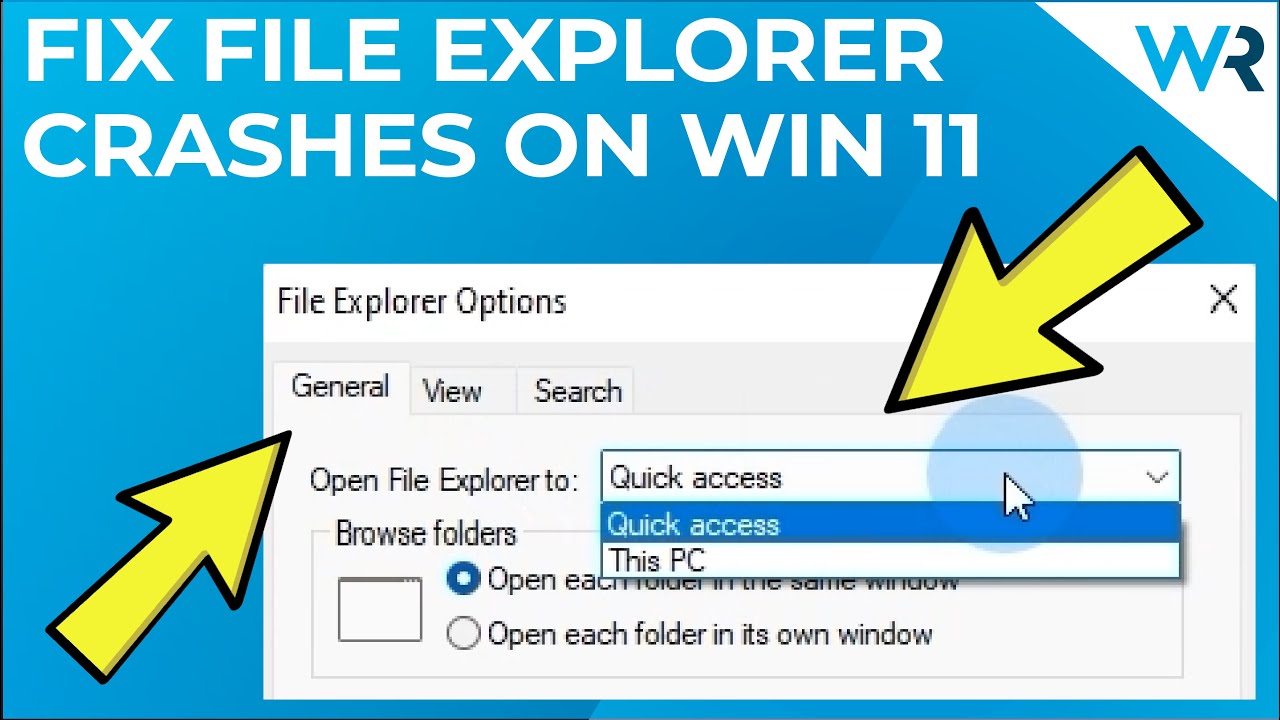
- Change Open File Explorer to This PC instead of Quick Access.
- Go to the View tab and uncheck Always show icons, never thumbnails.
Windows 11 File Explorer crashes when opening specific folders
If Explorer only crashes in certain folders, the folder contains a file or thumbnail that breaks the rendering engine. This is common in folders with videos, large images, or files from untrusted sources.
Test with a clean folder
Create a new empty folder on your Desktop and open it. If Explorer does not crash there, the problem is inside the folder that triggers the crash.
Disable thumbnail previews
- Open File Explorer Options and go to the View tab.
- Check Always show icons, never thumbnails.
- Click Apply and test the problem folder again.
Move or delete problematic files
Use Command Prompt to navigate to the folder and list its contents. Move suspicious files one by one to a different location until the crash stops. Video files with corrupted metadata are frequent offenders.
How to reset File Explorer completely in Windows 11?
A full reset clears every cached preference, view setting, and saved state for File Explorer. This fixes crashes caused by long-term corruption that simple restarts do not resolve.
Restart Explorer from Task Manager
- Open Task Manager with Ctrl + Shift + Esc.
- Find Windows Explorer in the Processes tab.
- Right-click it and select Restart.
Reset via Windows Terminal
- Open Windows Terminal as Administrator.
- Run
taskkill /f /im explorer.exeto stop Explorer. - Run
start explorer.exeto restart it with a clean session.
Repair all Windows apps
Run sfc /scannow and DISM /Online /Cleanup-Image /RestoreHealth in sequence. These two commands repair the system components Explorer relies on without touching your personal files.
If you encounter deeper system errors during repair, such as error 0x8000ffff catastrophic failure, those usually point to a corrupted component store that DISM can fix.
Does a new GPU driver or update fix Explorer crashes permanently?
Updating your GPU driver and keeping Windows current fixes Explorer crashes for most users, but it is not always permanent. New Windows updates can reintroduce bugs, and driver rollbacks may be needed if a new driver causes instability.
When to roll back your GPU driver
- If crashes started within days of a driver update.
- If Explorer freezes specifically when opening folders with media files.
- If you see graphical glitches or black boxes before the crash.
Open Device Manager, right-click your GPU, choose Properties, go to the Driver tab, and click Roll Back Driver.
Keep Windows updated but delayed
In Settings, go to Windows Update and set updates to Defer by 14 days. This lets you avoid buggy early releases while still getting critical security patches.
FAQ
QCan File Explorer crashing corrupt my files?
No, Explorer crashes do not corrupt files that are already saved on disk. However, if you were copying, moving, or renaming files when it crashed, the operation may be incomplete. Always verify file locations after a crash.
QIs a full Windows reinstall the only fix for persistent Explorer crashes?
No, a reinstall is almost never necessary. Running SFC, DISM, resetting Explorer, and disabling Shell Extensions resolves the issue in the vast majority of cases. Save the reinstall as an absolute last resort.
QWhy does File Explorer crash only when I plug in a USB drive?
This usually means the USB drive has corrupted metadata or a bad sector that Explorer tries to read at mount time. Scan the drive for errors using chkdsk X: /f or format the drive if it contains nothing important.
QDoes third-party antivirus cause Explorer to crash?
Some antivirus programs inject Shell Extensions that conflict with Explorer’s file operations. If crashes started after installing antivirus software, try temporarily disabling it to confirm the cause.
Final Word
Windows 11 File Explorer crashing is almost always fixable without a reinstall. Start with system file repair and driver updates, then work through Shell Extensions and cache cleanup.
Use Event Viewer and crash logs to pinpoint the exact faulting module so you are fixing the real cause and not guessing.